




Setting Paper on the Bypass Tray
This section gives instructions for setting paper on the bypass tray.
For details about paper size and paper type, see "Paper Size and Paper Type", About This Machine.

Paper sizes that can be loaded onto the bypass tray are 100
 305 mm (3.94 12 in.) vertical, and 148 457.2 mm (5.83 18 in.) horizontal.
When paper larger than 458 mm (18.1 in.) in length is used, the paper may become wrinkled, may not be fed into the machine, or may cause paper jams.
The machine can automatically detect the following sizes as regular size copy paper:
 A3
A3 , A4, A5, 8 "
  13 "
13 " A3, 11 " 17 ", 81/2 " 14 ", 51/2 " 81/2 "
If you want to use the size of paper other than the above, be sure to specify the size.
The following functions are disabled when printing from the bypass tray:
Duplex / Booklet printing
Auto Tray Select
Auto Tray Switching
Rotating Collate
Staple (when the optional Finisher SR4010, Finisher SR4020, or SR5000 is installed)
Punch (when the optional Finisher SR4010, Finisher SR4020, or SR5000, and Punch Unit is installed)
Z-fold (when the optional Finisher SR4020, Finisher SR5000 and Z-folding unit is installed)
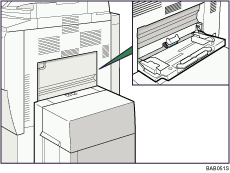
 Open the bypass tray.
 Gently insert paper face up into the bypass tray until the beeper sounds, and then adjust the paper guides to the paper size.
If the paper size of the paper guide and the paper do not match, skewing and misfeeds might occur.
Do not stack paper over the limit mark, otherwise a skewed image or misfeeds might occur.
Open out the extender to support paper sizes larger than A4, 81/2 " 11 ".
Fan the paper to get air between the sheets to avoid a multisheet feed.
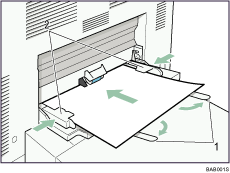
Extender
Paper Guide
 Set the paper size using the printer driver or the control panel.

When loading thick paper, thin paper, or OHP transparencies, set paper size and paper type.
The number of sheets that can be loaded in the bypass tray depends on the paper type.
When loading letterhead paper, see "Loading Paper", General Settings Guide.
Depending on the environment where the machine is being used, you might at times hear a rustling noise from paper moving through the machine. This noise does not indicate a malfunction.
When the Panel Key Sound is turned off, it will not sound if you insert paper into the bypass tray. For details about Panel Key Sound, see "System Settings", General Settings Guide.
The bypass tray is not usable when the wide large capacity tray (Wide LCT) is installed. For details about setting paper on the Wide LCT, see "Changing the Paper Size", Trouble Shooting.
For details about setting printer drivers, see the printer driver Help.


