




Adjusting Image Density
This section describes how to adjust image density.
After moving the printer, printing on thick paper, or printing repeatedly for some time, image degradation may occur. By performing automatic image adjustment, you can restore optimum print quality.
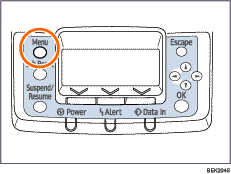
 Press the [Menu] key.
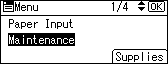
 Press the [
 ] or [
 ] key to select [Maintenance], and then press the [OK] key.
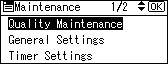
 Press the [] or [] key, and then press the [OK] key to select [Quality Maintenance].
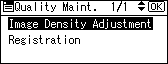
 Press the [] or [] key to select [Image Density Adjustment], and then press the [OK] key.
 Press the [] or [] key to select the image density, and then press [OK].
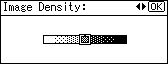
Enter the value between -3 and 3.
About two seconds later, the display returns to the [Quality Maintenance Menu] screen.
 Press the [Menu] key.
The display returns to the initial screen.

