




Setting the Ethernet Speed
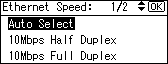
You can set the speed that the printer will use for Ethernet communications. In most cases, this should be left on the default setting, [Auto Select]. This setting allows two interfaces to automatically determine the optimum speed when they are connected.
Router/HUB |
Printer |
||||
|---|---|---|---|---|---|
[10Mbps Half D.] |
[10Mbps Full D.] |
[100Mbps Half D.] |
[100Mbps Full D.] |
[Auto Select] |
|
10 Mbps half duplex |
|
- |
- |
- |
|
10 Mbps full duplex |
- |
|
- |
- |
- |
100 Mbps half duplex |
- |
- |
|
- |
|
100 Mbps full duplex |
- |
- |
- |
|
- |
auto-negotiation (auto selection) |
|
- |
|
- |
|


Connection cannot be established if the selected Ethernet speed does not match your network's transmission speed.
The auto-negotiation mechanism allows two interfaces to automatically determine an optimum Ethernet speed as soon as they are connected. We recommend you select [Auto Select].
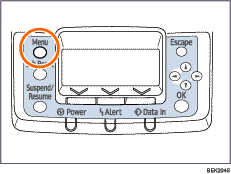
 Press the [Menu] key.
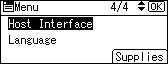
 Press the [
 ] or [
 ] key to select [Host Interface], and then press the [OK] key.
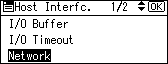
 Press the [] or [] key to select [Network], and then press the [OK] key.
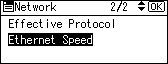
 Press the [] or [] key to select [Ethernet Speed], and then press the [OK] key.
 Press the [] or [] key to select the Ethernet speed, and then press the [OK] key.
 Press the [Menu] key to return to the initial screen.
 Print a configuration page to confirm the settings.

For details about printing the configuration page, see "Test Printing", Quick Installation Guide.

