




Installing the Gigabit Ethernet Board

Before beginning work, ground yourself by touching something metal to discharge any static electricity. Static electricity can damage the board.
Do not subject the board to physical shocks.
The printer's Ethernet and USB ports are not available when the Gigabit Ethernet board is attached to the printer. Use the Ethernet and USB ports on the Gigabit Ethernet board.
 Check the contents of the package.
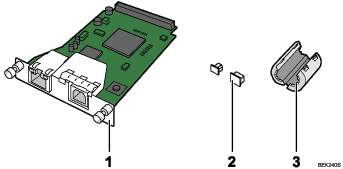
Gigabit Ethernet Board
Protective Caps (one each for the Ethernet port and the USB port)
Ferrite Core
Use the included ferrite core when connecting an Ethernet cable to the board.
 Turn the printer off and unplug the power cord.
 Unplug cables from the USB and Ethernet ports, and then cover them with the protective caps.
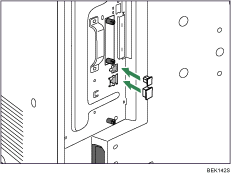
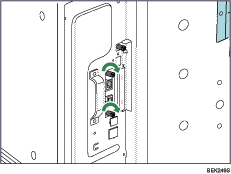
 Loosen the two screws and remove the slot cover.
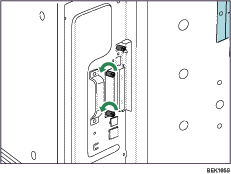
The removed cover will not be reused.
 Fully insert the Gigabit Ethernet board.
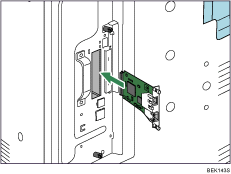
Confirm that the Gigabit Ethernet board is firmly connected to the controller board.
 Tighten the two screws to secure the board.
 Plug in the power cord, and then turn on the printer.
 Print the configuration page to confirm that the board was attached correctly.

Confirm that the board was correctly installed by printing the configuration page. If it is correctly installed, "Gigabit Ethernet Board" will appear for "Device Connection" on the configuration page.
If the board was not installed properly, repeat the procedure from step 2. If it cannot be installed correctly even after reattempting installation, contact your sales or service representative.
For information on printing the configuration page, see "Test Printing", Quick Installation Guide.
Before using the board, you must configure settings from the control panel. For details, see "Ethernet Configuration".


